

Remote Support
Remote support enables us to fix most of your software problems without the need to visit you. Providing you have a working Internet connection, it is often much quicker & cheaper to assist you remotely.
Sorry, this page is only available from a desktop browser.
Remote support is so simple and convenient. When instructed by one of our Technicians, please follow the instructions below to get up and running with TeamViewer

Step 2 (when using Internet Explorer or Microsoft Edge)
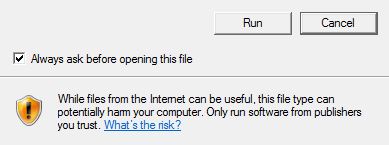
When using Internet Explorer or Microsoft Edge, you will be asked if you want to Run/Open/Save TeamViewerQS.exe. Please choose ‘Run’ or ‘Open’ from the list of options. This will run Teamviewer without saving or installing it to your computer.
Step 2 (when using Google Chrome)
When using Google Chrome, you will need to click on the file in the downloads bar at the bottom of the browser window. This will launch TeamViewer.

Step 3
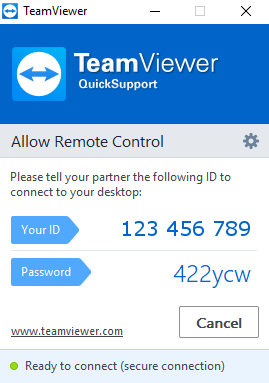
Finally, provide us with your TeamViewer ID & password. That?s all we need to connect to your computer. Sit back and let us work our magic!
By providing us with your TeamViewer access code you are to the following terms & conditions
[content_block id=1752]